Coding
Coding and Financial Analysis
In this example, we will set up a workflow for retrieving and plotting stock prices over a specified period. The workflow includes agents for data retrieval, data plotting, and message handling.


Overview
The flow includes:
- Code Executor Agent: Executes the code for retrieving and plotting stock prices.
- Code Writer Agent: Writes the code for retrieving and plotting stock prices.
- Get and plot stock data Tool: Fetches stock prices using
yfinanceand plots them usingmatplotlib.
Agents and tools
Tools
Get and plot stock data
- Description: Get and plot the stock prices for the given stock symbols between the start and end dates.
- Inputs:
stock_symbols(str or list),start_date(str inYYYY-MM-DD),end_date(str inYYYY-MM-DD).
Content:
def get_and_plot_stock_data( stock_symbols: list[str], start_date: str, end_date: str, filename: str, ) -> str: # pylint: disable=import-outside-toplevel import pandas as pd import matplotlib.pyplot as plt import yfinance as yf data = yf.download(stock_symbols, start=start_date, end=end_date) # Get the closing prices closing_prices = data['Close'] # Normalize the prices to start at 100 for easier comparison normalized_prices = closing_prices.div(closing_prices.iloc[0]) * 100 # Create the plot plt.figure(figsize=(12, 6)) for symbol in stock_symbols: plt.plot(normalized_prices.index, normalized_prices[symbol], label=symbol) plt.title('Stock Prices') plt.xlabel('Date') plt.ylabel('Normalized Price (Base 100)') plt.legend() plt.grid(True) # Save the figure plt.savefig(filename) plt.close() return "ok"- At the advanced tab, add the extra librabries that we use in our tool


- Save the tool.
Agents
Code Writer Agent
- Models Link a model of your choice to the Code Writer Agent. In our example, we use the
gpt-4-turbomodel. - Tools In the tools tab, add the
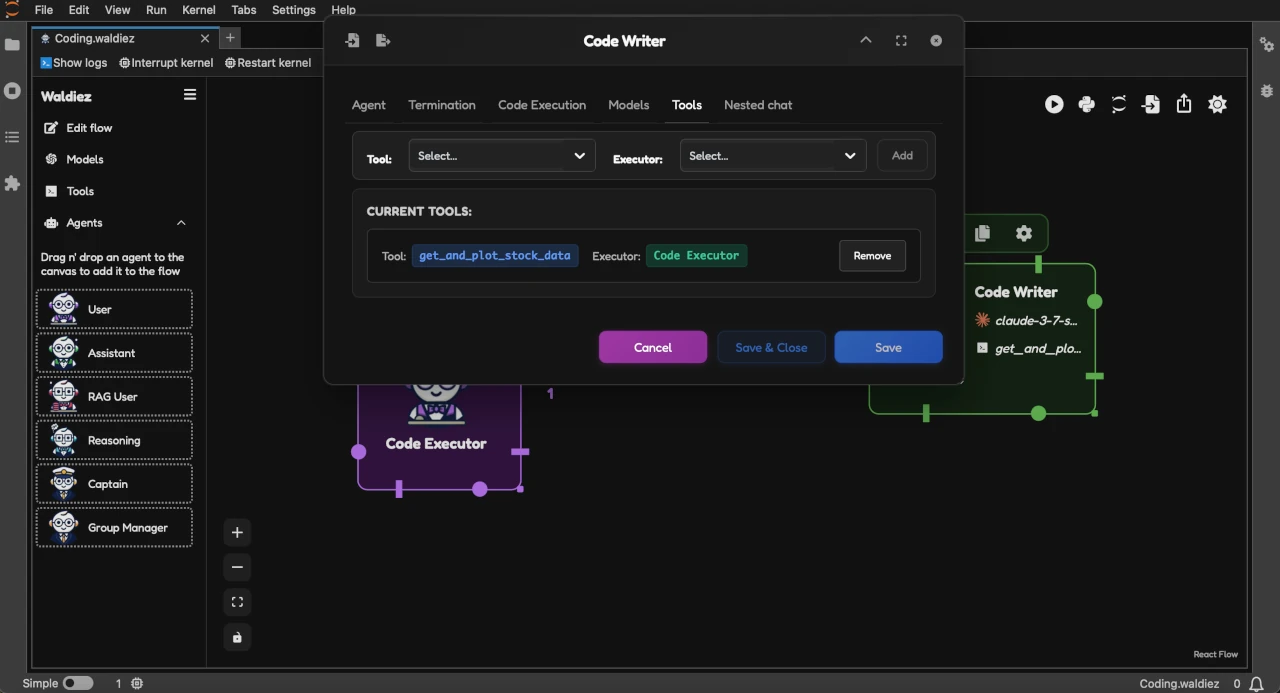
get_and_plot_stock_datatool to the Code Writer agent. As executor, select the Code Executor agent.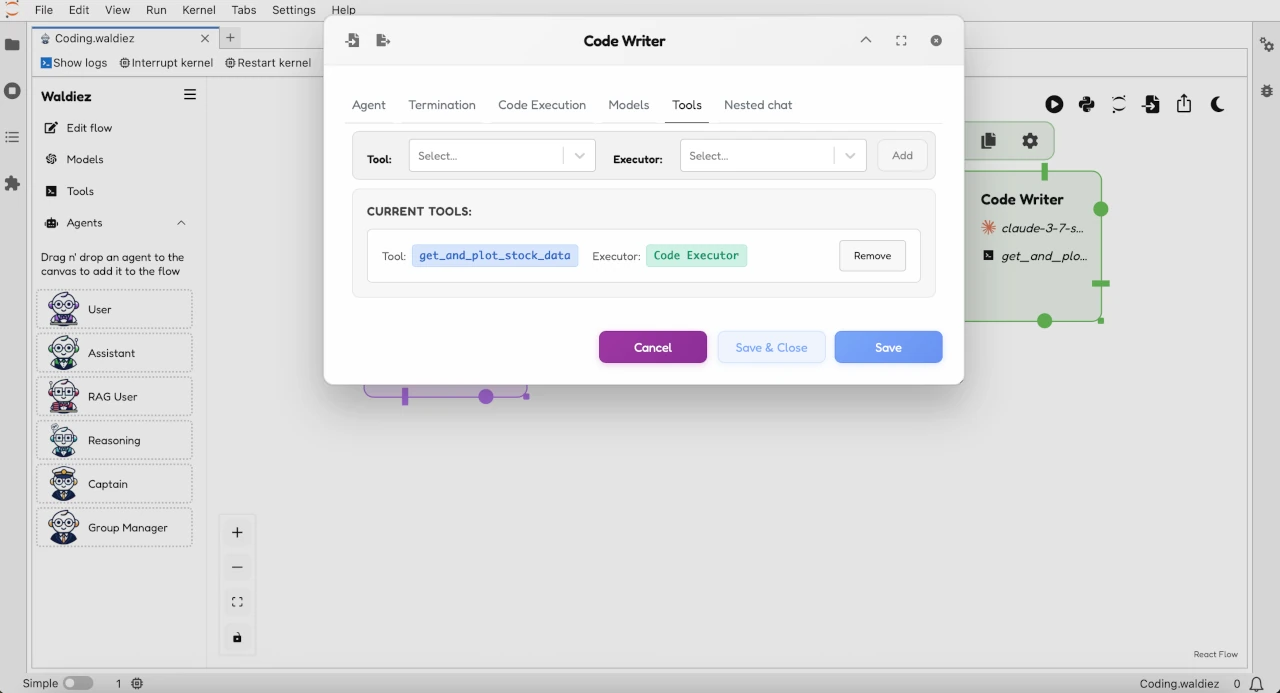
Code Executor Agent
In this step, we'll configure a Code Executor Agent to handle the execution of the functions required for retrieving and plotting stock data.
Basic configuration
- Max consecutive auto replies: Let's limit the number of auto-replies to
10to avoid unnecessary repetition. - Agent Default auto-reply: We can set the default auto-reply to `Please continue. If everything is done, reply 'TERMINATE', to avoid repeating the same message when asked.
- Max consecutive auto replies: Let's limit the number of auto-replies to
Code Execution
- At the Code Execution tab, check the box for Use Code Execution.
- Set the Working Directory to
coding(or your designated project folder). - Set the Timeout slider to
60seconds to allow enough time for the code to fetch and plot data without interruption. Under Functions, add the
get_and_plot_stock_datafunctions to allow the Code Executor Agent to access and execute these methods.

Flow chats and requirements
- Edit Flow: Set up the flow order to start with the "Code Executor Agent => Code Writer" connection.
Note
Instead of adding extra requirements for each tool, you can add the additional requirements that we have used (yfinance, matplotlib, pandas) in our tools to the flow requirements.
Run the flow
Press the Run button to execute the flow. When asked, you can press Enter to use the Agents auto-reply message. When you get a message about having the plot generated, you can enter TERMINATE (or exit) to end the flow.
You can view the generated code and plot in the specified code execution folder.


Files used in this example:
- Flow: Coding.waldiez
- Generated notebook: Coding.ipynb
- Tool:
Note
The outputs may vary based on the model, tools and message you use. Feel free to customize the tools and messages to suit your requirements