Captain Agent
A Captain Agent orchestrates a conversation by dynamically creating agents and tools from a pre-defined library. It's particularly useful for simulations, planning sessions, and AI-driven multi-agent environments where the participants and tools are defined at runtime.
Basic Setup
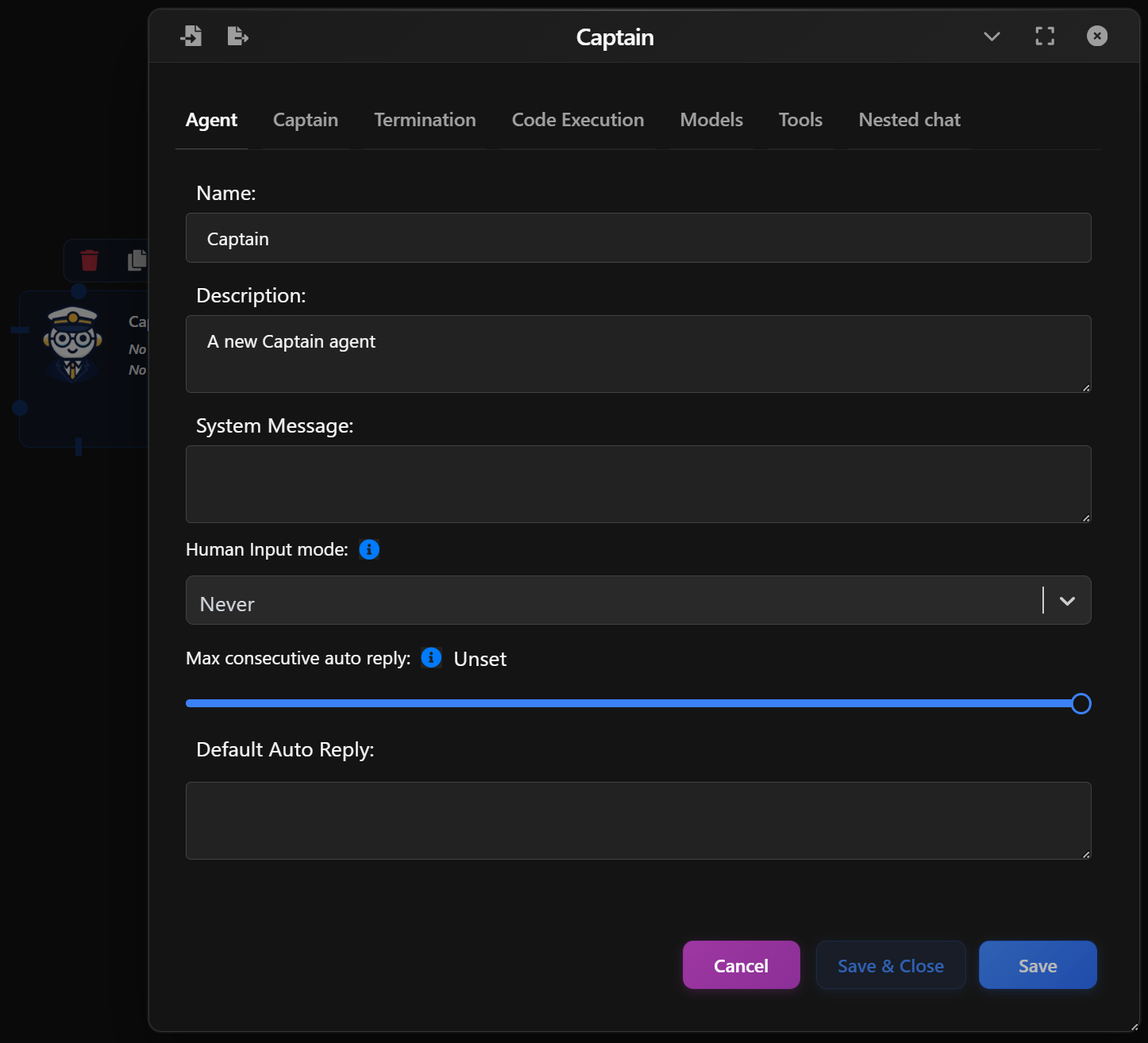
In the Agent tab:
- Name & Description: Customize how the agent is labeled in your flow.
- System Message: Define the agent's behavior or role.
- Human Input Mode: Whether to ask for human inputs every time a message is received. Possible values are:
- Always: The agent prompts for human input every time a message is received. Under this mode, the conversation stops when the human input is "exit", or when is_termination_msg is True and there is no human input.
- Terminate: The Agent only prompts for human input only when a termination message is received or the number of auto reply reaches the max_consecutive_auto_reply.
- Never: The agent will neever prompt for human input. Under this mode, the conversation stops when the number of auto reply reaches the max_consecutive_auto_reply or when is_termination_msg is True.
- Max Consecutive auto reply: The maximum number of consecutive auto replies (i.e., when no code execution or LLM-based reply is generated). Default is None (no limit provided). When set to 0, no auto reply will be generated.
- Defautl Auto Reply: Set a Default auto reply.
Captain Configuration
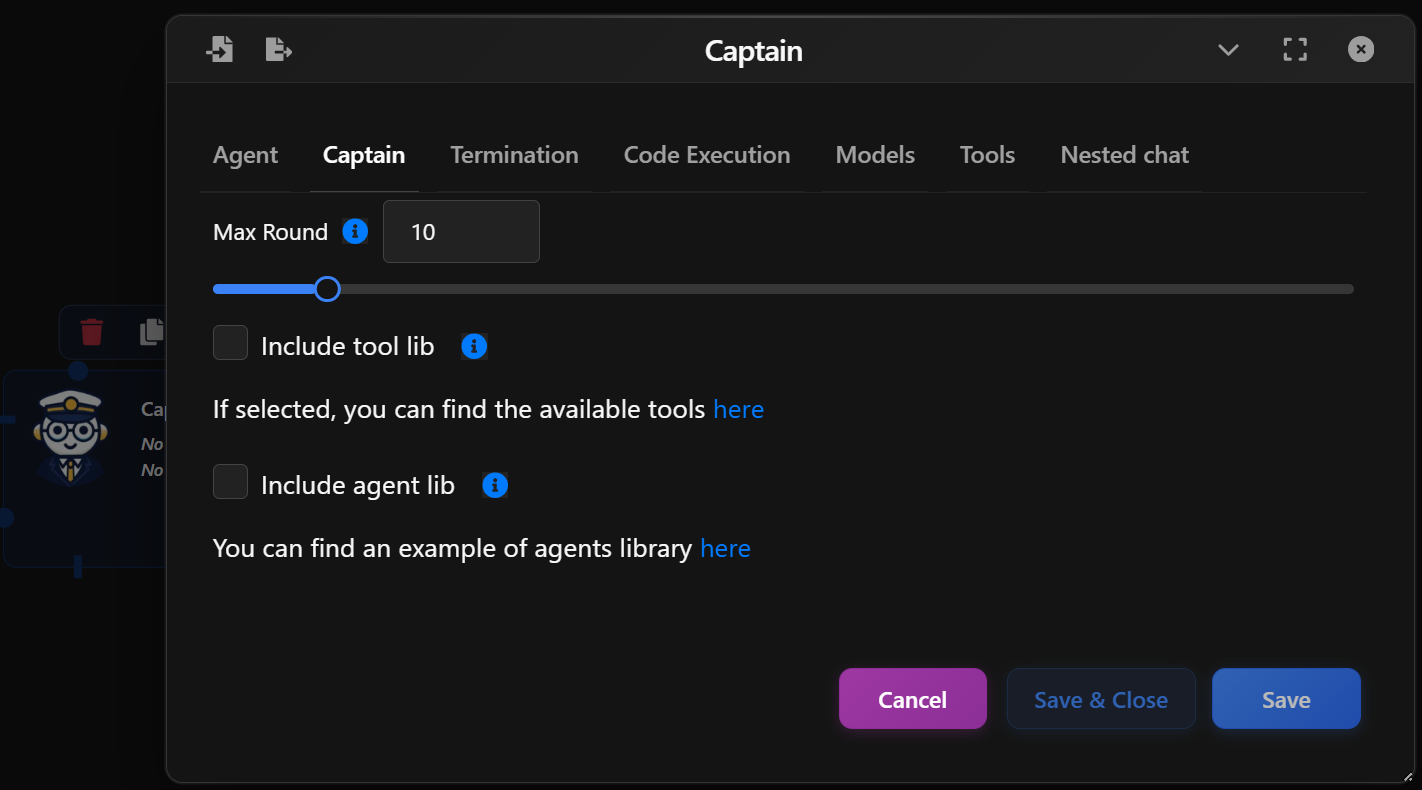
In the Captain tab, you define the scope and components of the simulated group chat:
- Max Round: The maximum number of message rounds to run in the generated conversation.
- Include Tool Lib: If enabled, tools from a pre-defined library will be included.
- Include Agent Lib: If enabled, the Captain will dynamically generate agents from a provided agent library file.
- File Upload Box: Drop in your custom agent or tool library as a JSON file.
Termination Conditions
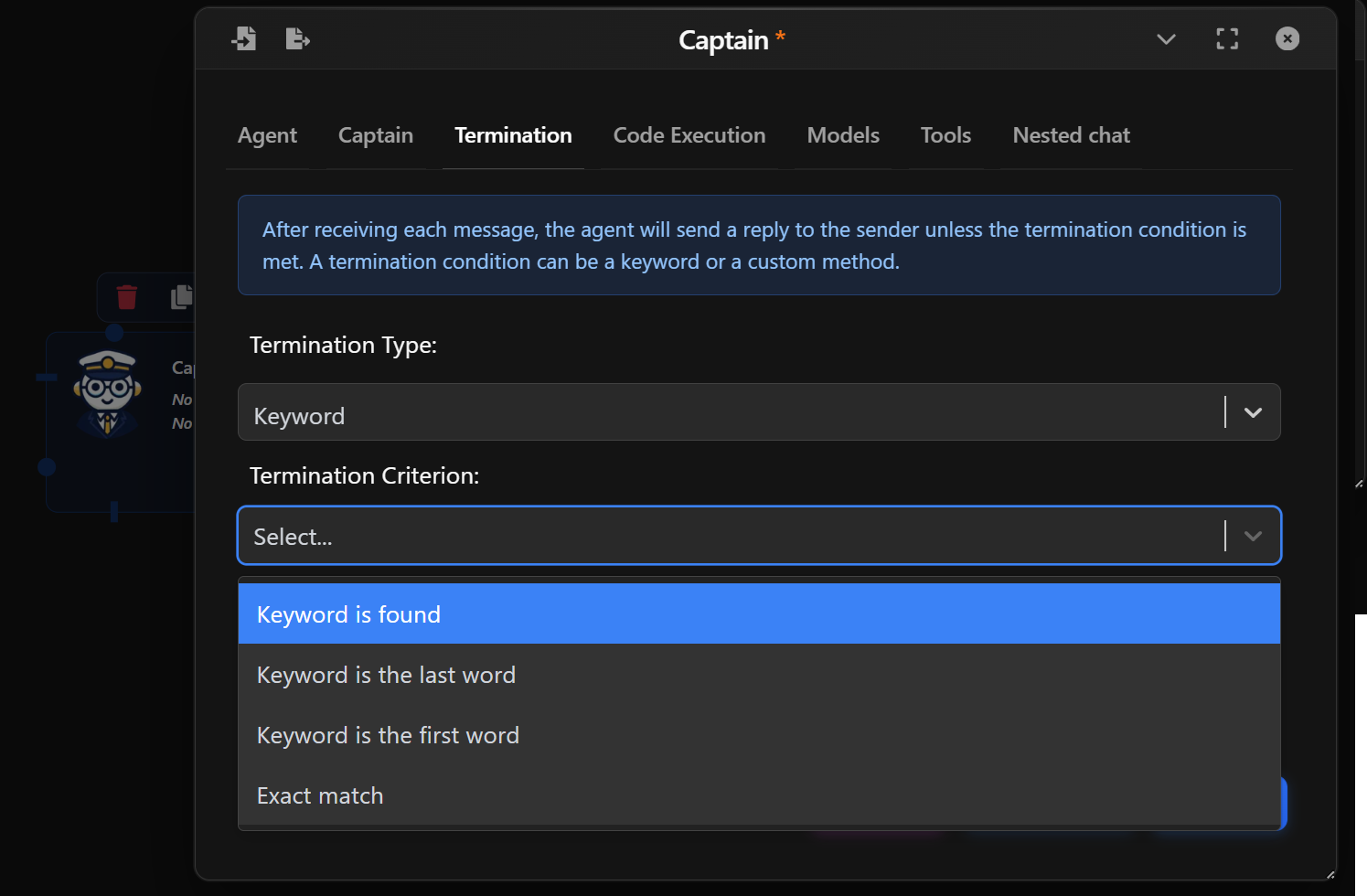
Control if and when the Agent should stop responding:
- By Keyword: Stop when specific keywords are found (e.g., “stop”, “done”).
- By Method: Use a custom Python function to decide when to stop.
Examples:
- "Keyword is found" — stops when a phrase appears.
- "Exact match" — stops only if the reply is exactly the keyword.
Code Execution Settings
In the Code Execution tab:
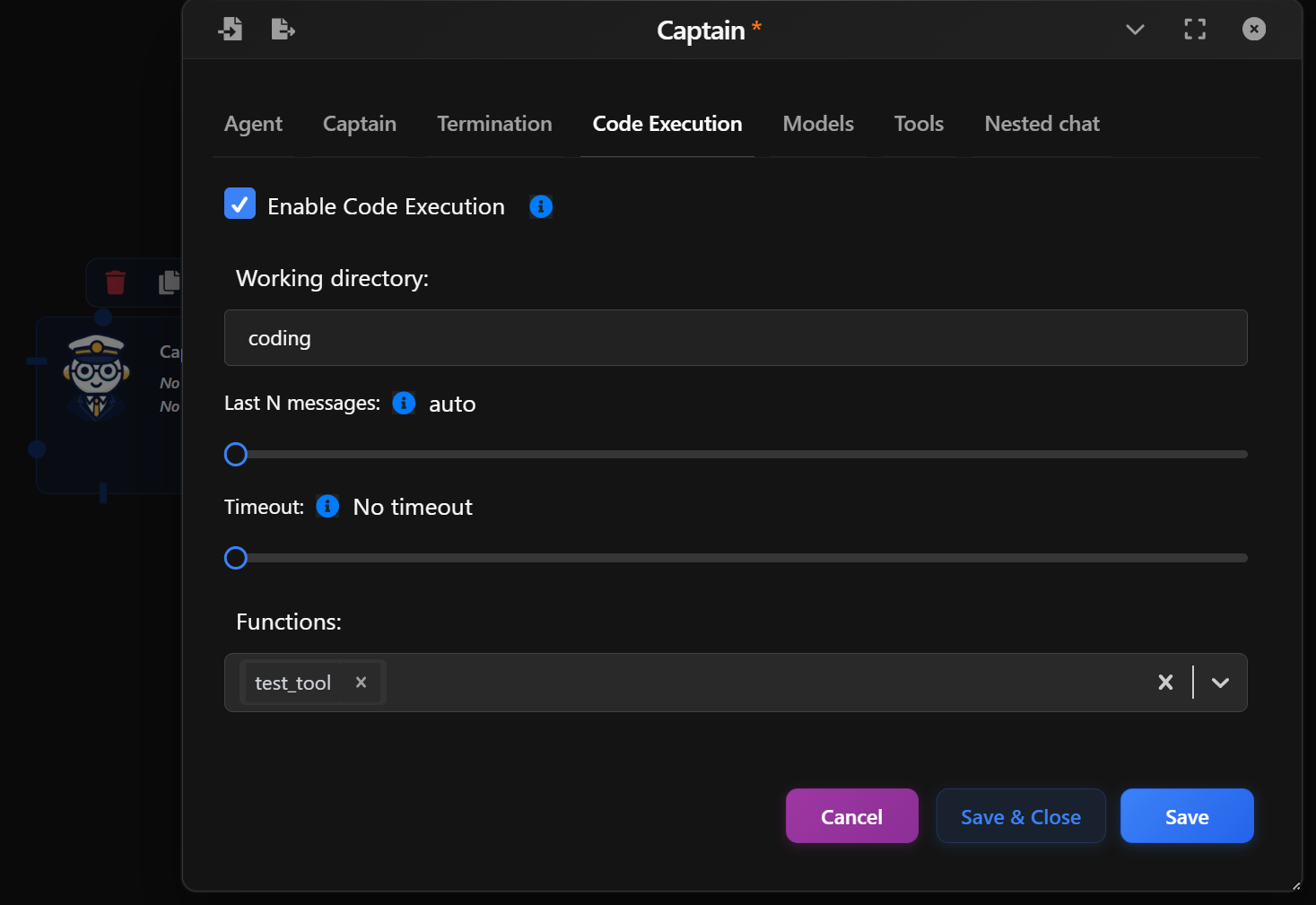
- Enable Code Execution: Allows the Captain Agent to execute Python snippets (for testing flows or simulating dynamic behavior).
- Working Directory: Specify where any temporary code files should be executed.
- Last N Messages: Determines how many previous messages should be included as context. Auto will use all available.
- Timeout: Optional timeout to prevent long-running code.
This is useful for simulating scenarios where a user performs code-based tasks or replies with dynamically computed results.
Model Configuration
In the Models tab:
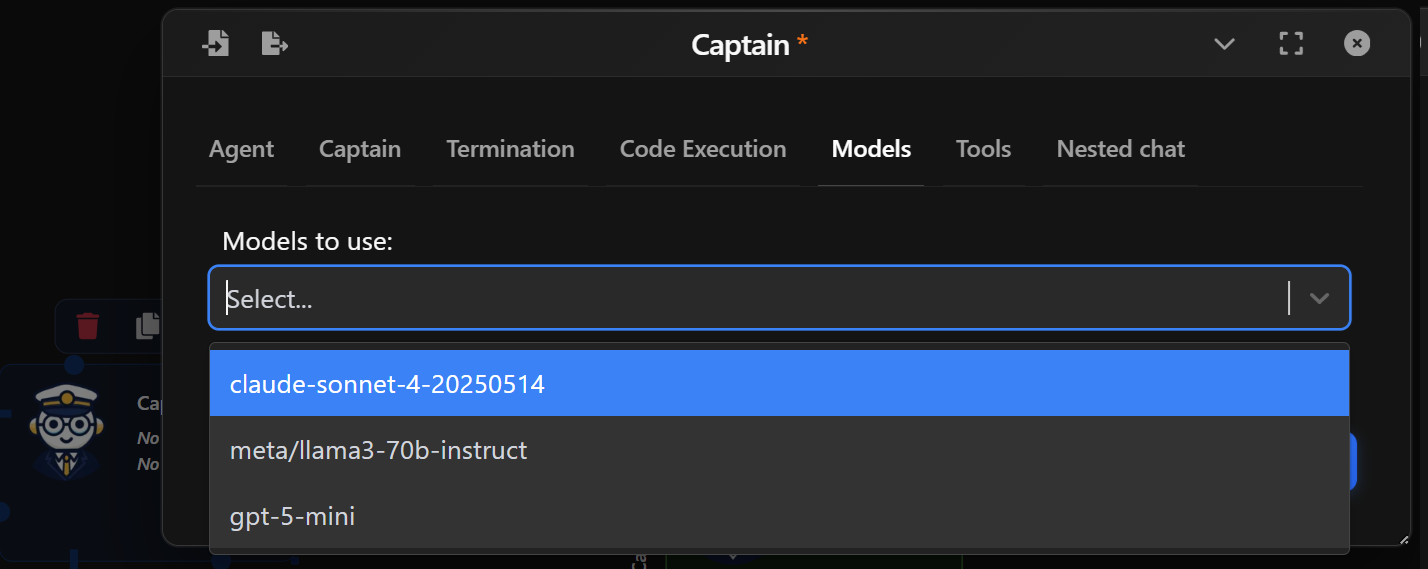
- Model Selection: Choose a language model (e.g. gpt-4.1) to power your agent.
- You can assign different models to different agents for flexibility.
For a deeper overview of available models and configuration options, check the Models Guide.
Tools
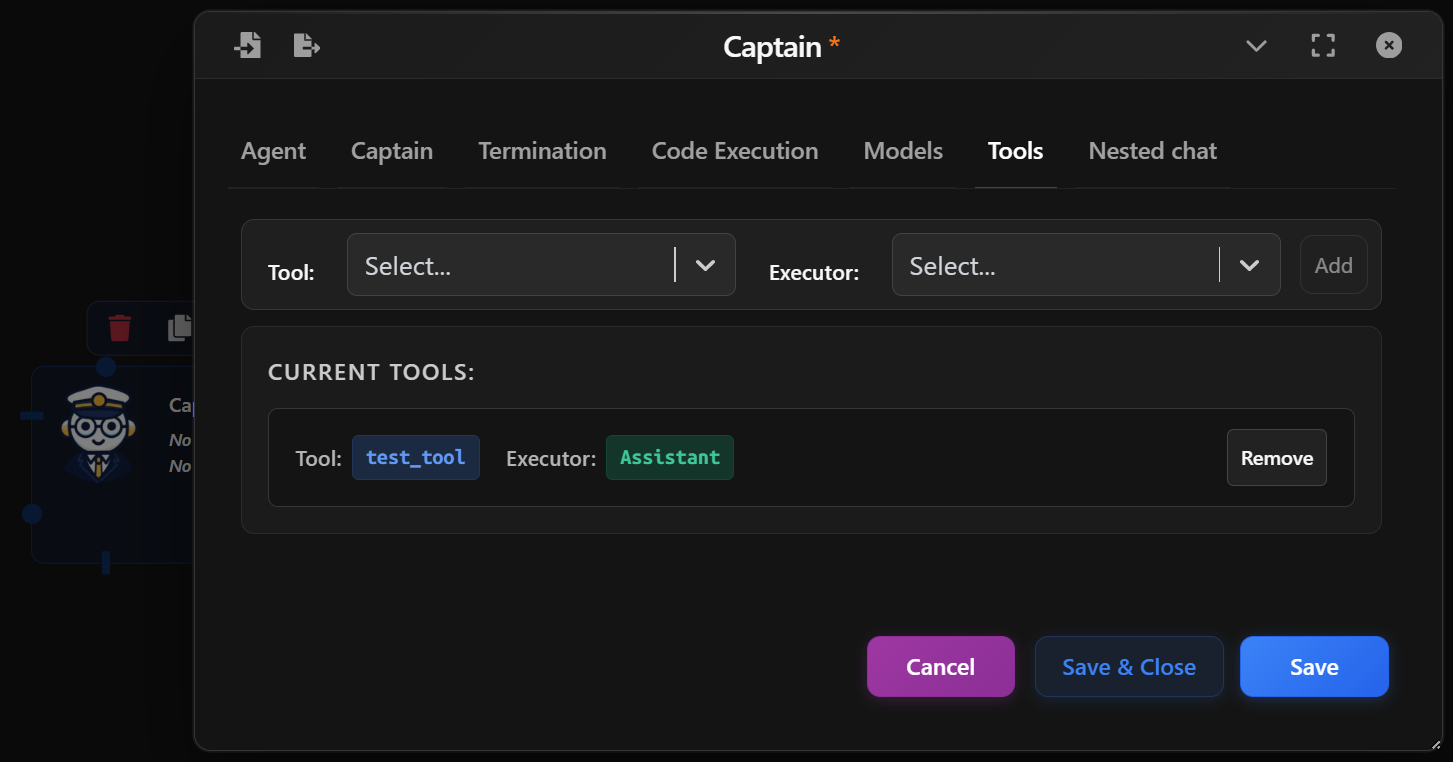
Captains can use tools (e.g., search, calculations, APIs) with executors (other agents like User or Assistant) that run them.
- Tool: Choose a defined tool from your system.
- Executor: Select which agent will handle the tool execution.
- Add to bind the tool to this Captain.